I managed to solve the problems I was having with the local app, As I got help from the community I go here to show how I solved my problems in the form of thanks for the help I also had, The problem is that people have help but not that it helps others that they also need help.
I had the problem with the local app, I did not open it at all, I tried everything and nothing, Above is a way that I managed to solve it, But later researching more I found the root of the problem where the problem was caused
Solving the problem of not opening the app from the location:
Open the start menu and type environment variables and open
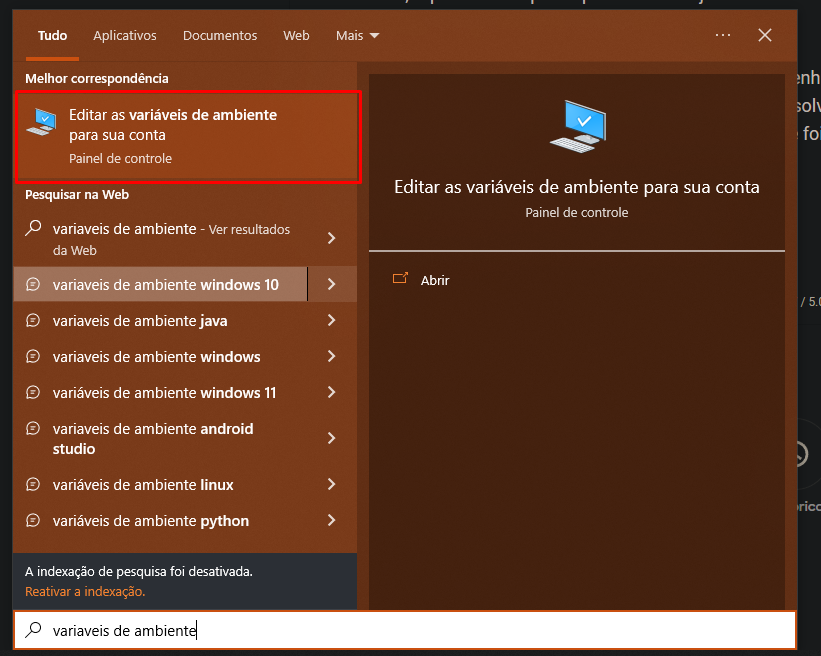
Another tab will open system properties>>Advanced>>Environment variables

An environment variables tab will open where we will solve all the problems:

1: Location app not open
2: The Chrome browser did not open to access the website page, the wp-admin panel of the database and as if the local did not find the executable of the browsers to open
Here where I solved these 2 problems, let’s see how it solves.
1 problem: Local app did not open

For some reason, the local app needs this file to open (ComSpec), That’s where the problem was, the partition was wrong, it belonged to another Windows user (E:) so I just put (C:) that is the Windows root folder, I noticed that other programs needing this file to be opened also with the Dolphin Anty browser, App Google Drive, When I redirect the path to the root folder of windows, the problem of the program where it did not open, Above there is also a solution to this problem that I did a copy of this file and put it in the user that I was using, It is also a solution but I prefer this one because where is the root of the problem where the problem was caused.
When I solved the problem of the place not opening a new problem appeared,
2 problem the Chrome browser would not open to access my local account, the website page would not open, wp-admin the database panel and as if local could not find the executable of the browsers to open.

You will select this tab (Path) and click on edit. Another tab will open where we are going to solve the problem of the browser not being recognized.
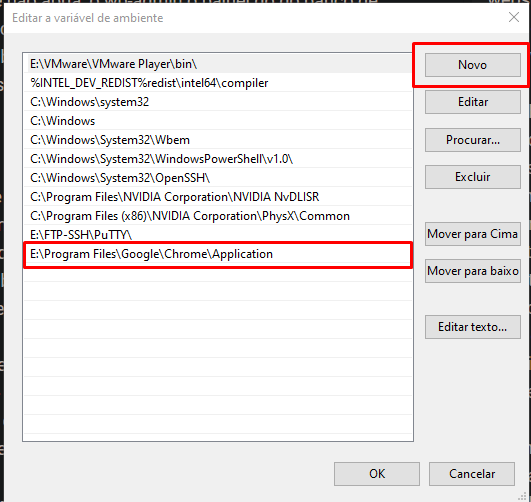
Click on (New) and put the directory where the Google Chrome executable will be. That’s it, now the location will recognize the Google Chrome executable.
Note: Don’t forget to apply and click OK to save everything you’ve done.
I hope it solved your problem as well as it solved my problem, I don’t know if the translation was good because I’m from Brazil and I don’t know English and I’m using google translator hug and see you.
Thank you for your help: @Nick-B