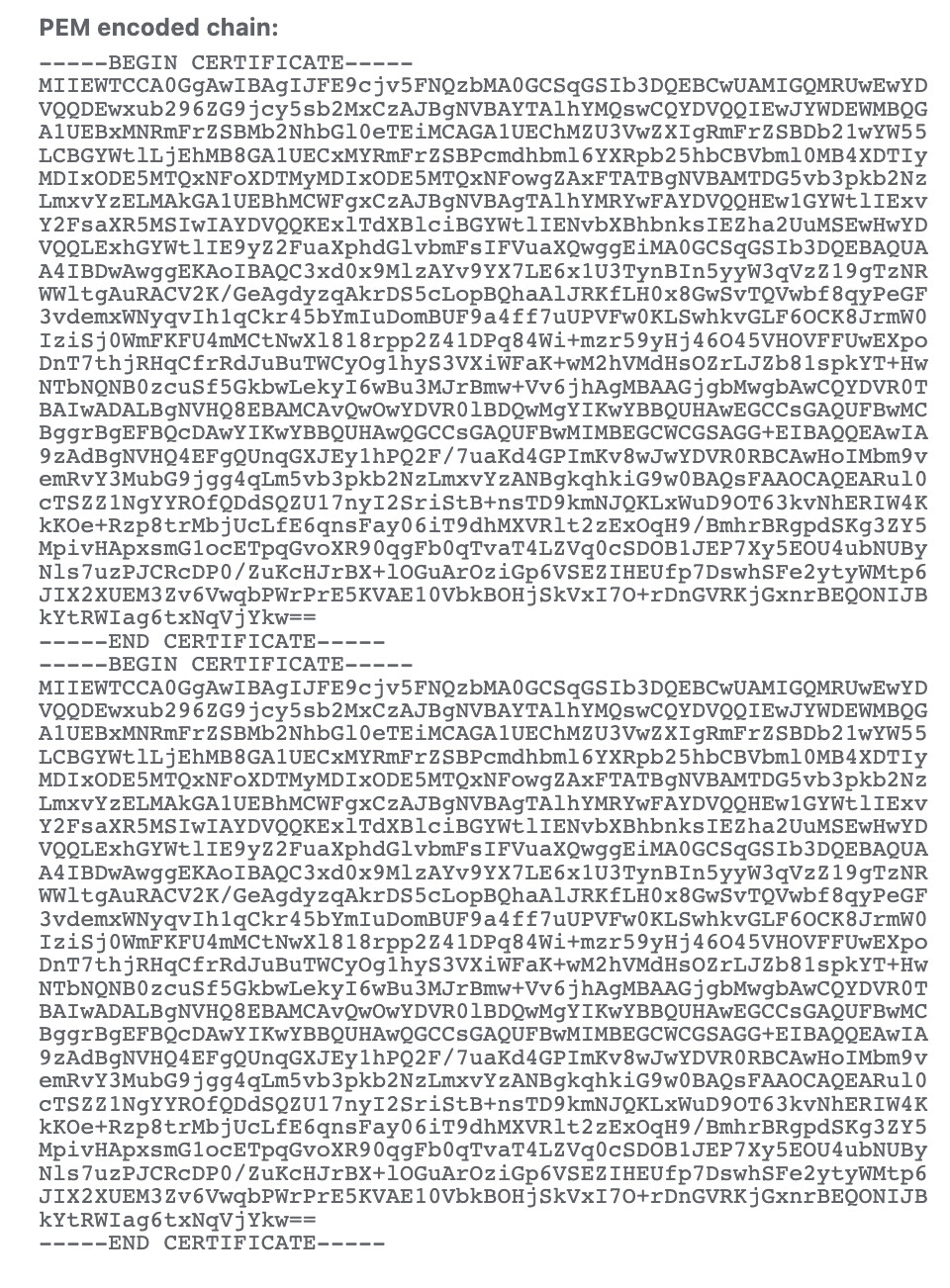
Thank you for the additional context here. Our engineering team is actively looking into this issue this week, and we’ll update the forums as we know more. I am going to merge this thread into a larger discussion of the issue to keep conversation in the same place.
I am getting this same error and can confirm that I am also getting doubled-up certifications for my sites in Local. I do not use Flywheel for any of my projects – I use Git to import the codebase and point Local to the appropriate site folder.
I this error only appears in Chrome v98.0.4758.80 in macOS Monterey v12.1. All other browsers work fine. Attached are the support logs.
For Chrome, if you are trying to bypass the warning you can type thisisunsafe directly in the browser window. Obviously only do this on sites you trust!
However, doing this does not resolve the issue with Google Chrome. Nor do any of the other steps presented in the guide.
The only way I have found to access a site that I’ve pulled to local app that is secured with SSL, it to go to Keychain Access for the local certificate for that site (Search your-domain.local) and instead of double clicking, right click and choose “Evaluate…”.
Then tick the SSL radio button, and “Ask host for certificate” checkbox, then paste the full local site url into the Host Name field. And click continue.
If you’ve followed Flywheel’s advise and changed “When using this certificate” from “Use System Defaults” to “Always Trust”. Change it back, or it won’t work.
This will now provide the link within Google Chrome to “Continue anyway”
It’s not ideal, but at least you can access your site in Chrome now.
(For full disclosure - I had followed all steps of the Flywheel solution which didn’t work, so it may be necessary to follow the BASH command to force HTTPS, but I suspect not, so have left this out from this workaround)
Hope this helps someone else who’s been struggling like I have - support were useless, just sending me to this forum where there was no solution!
I can reproduce the double-cert issue on my MacBook Pro Big Sur 11.1.
Going into KeyChain to AlwaysTrust works only in Safari.
Typing ‘thisisunsafe’ while the Chrome browser window is in focus, works.(there is no button, you do not type into address bar, no text to see as you type, just type it and then refresh)
The other workaround I use is logging into WordPress in Safari, changing the WordPress and site URLs to ‘http’ and living with ‘Not secure’ in the address bar of other browsers.
Is there an update on this issue? I have not found a workaround to be able to load a Local site in Chrome with SSL. Other browsers, while we can accept security risks, still will not load with a secure SSL connection and therefore this is causing SSL related errors, especially with AJAX requests.
Or if there’s not progress or planned work on this, do any other uses have a good alternative to Local until this is resolved? Thanks.
We have been actively working on this issue as I said in a previous post. We believe we have a fix for the issue, but we’ll need help from users here to confirm that we’ve resolved the issue. In our internal testing, the results have been positive.
We are starting the build process for a Beta release that will include this fix, and it should be ready to share before the end of the week. I will post the link to that build as soon as it is available.
Hey everyone! This was a pretty hard thing to debug since we had a hard time getting things in a reproducible state. The latest Beta build of Local was just released and has a fix that should get this working:
Since the beta version and the stable version of Local are two separate apps, you can install the beta version alongside the existing stable version. You’ll want to only run one version of the app at a time, since they both try to make use of some common resources.
Can you download that latest version and see if it allows you to create new sites that can be reached over HTTPS?
Note that if you are using the beta version, this won’t fix the certs for existing sites, you’ll need to delete those certificates first and then re-trust them.
Thanks for your help in finding and zeroing in on what was going on, and let us know if you have any other questions!
Thank you that seems to be working, you are still required to go into the KeyChain to grant access, but that now works on Chrome.
Can you advise when the main version will be released?
Many thanks
Josh
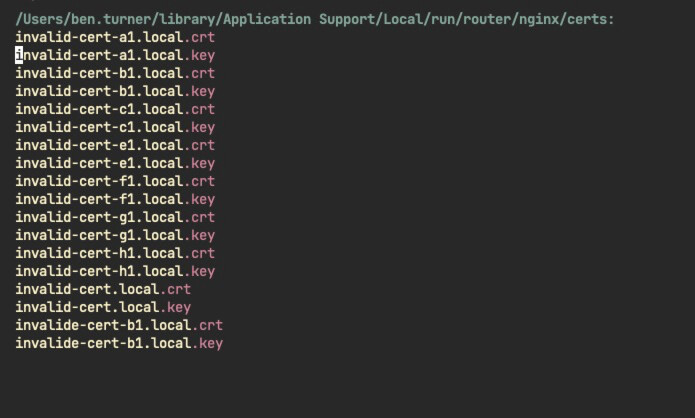
Ahh, now that you mention it, you might need to delete the actual certificate and key files within the Local config folder. You can find those key/cert pairs here, and
Hey @joshm & all following - We’ve finished testing on our end and all looks good. A huge thank you to all on this thread that helped verify the build resolved the issues too.
Local v6.3.1, which includes this fix, is live on the releases page - https://localwp.com/releases/6.3.1/
It takes some time for our CDN to reach 100% of users, so it is possible that “Check for Updates” within Local wouldn’t see this yet. Installing from the link will get users the latest bits!