I try to create encapsulated application using for this docker and files exporting from local. I check the version of WordPress and PhpMyAdmin and database in local (this program where I create project) so I use appropriate docker images:
image: wordpress:6.2.2-apache (because I not found 6.4)
image: mysql:8.0.36 (because I don’t found .16)
image: adminer (because I hear that is better than phpmyadmin)
my docker compose:
# create a local .env file with the following 4 properties:
#
# MYSQL_DATABASE=<something>
# MYSQL_USER=<something>
# MYSQL_PASSWORD=<something>
# MYSQL_ROOT_PASSWORD=<something>
#
version: "3.8"

services:

  database:
    # We use a mariadb image which supports both amd64 & arm64 architecture
    image: mysql:8.0.36
    restart: unless-stopped
    ports:
      - 3306:3306
    env_file: .env
    environment:
      MYSQL_ROOT_PASSWORD: '${MYSQL_ROOT_PASSWORD}'
      MYSQL_DATABASE: '${MYSQL_DATABASE}'
      MYSQL_USER: '${MYSQL_USER}'
      MYSQL_PASSWORD: '${MYSQL_PASSWORD}'
    volumes:
      - ./db-data:/var/lib/mysql
    networks:
      - wordpress-network
    deploy:
      resources:
        limits:
          memory: 2048m

  adminer:
    depends_on:
      - database
    image: adminer
    restart: unless-stopped
    ports:
      - 8081:8080
    networks:
      - wordpress-network

  wordpress:
    depends_on:
      - database
    image: wordpress:6.2.2-apache
    restart: always
    ports:
      - 8080:80
    env_file: .env
    environment:
      WORDPRESS_DB_HOST: database:3306 # use the same name as database service
      WORDPRESS_DB_NAME: '${MYSQL_DATABASE}'
      WORDPRESS_DB_USER: '${MYSQL_USER}'
      WORDPRESS_DB_PASSWORD: '${MYSQL_PASSWORD}'
    networks:
      - wordpress-network
    volumes:
      - ./wordpress:/var/www/html/

volumes:
  db-data:

networks:
  wordpress-network:
    driver: bridge
.env file
MYSQL_DATABASE=wordpress
MYSQL_USER=wordpress
MYSQL_PASSWORD=wordpress
MYSQL_ROOT_PASSWORD=wordpress
I import database from local to the container thanks to adminer
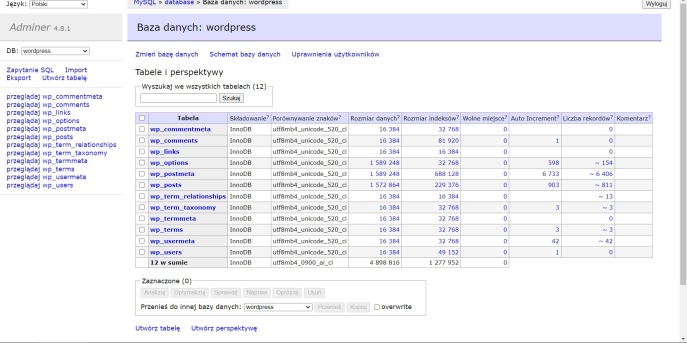
and replace all wordpress filles on the files from local
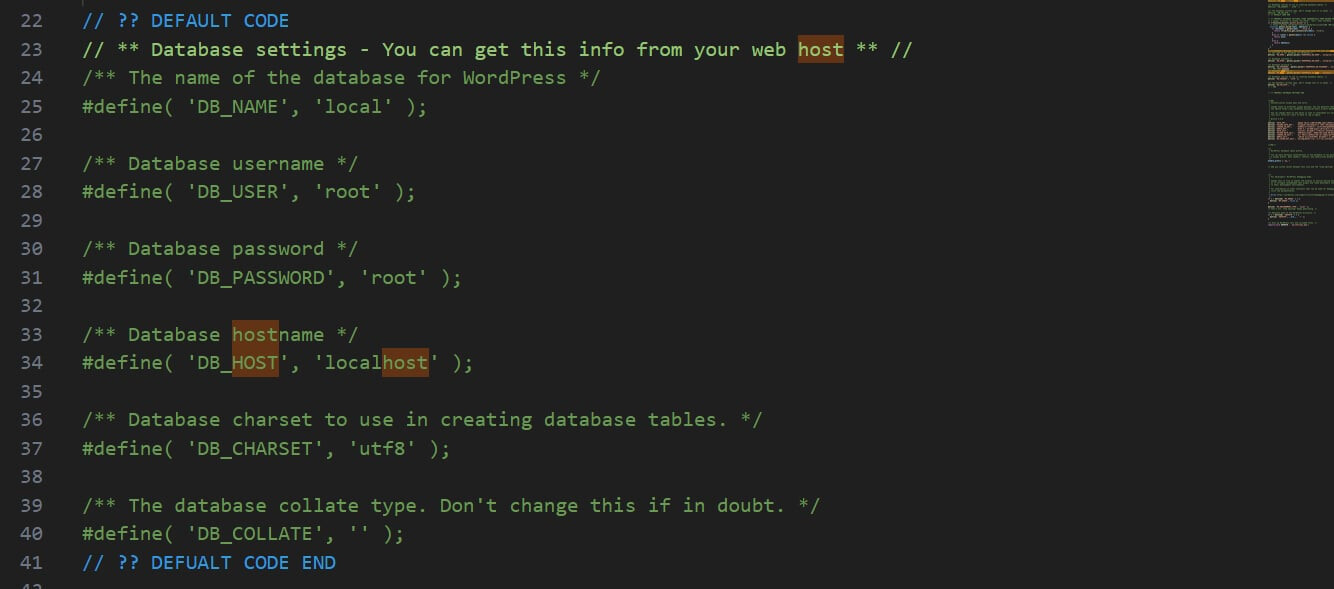
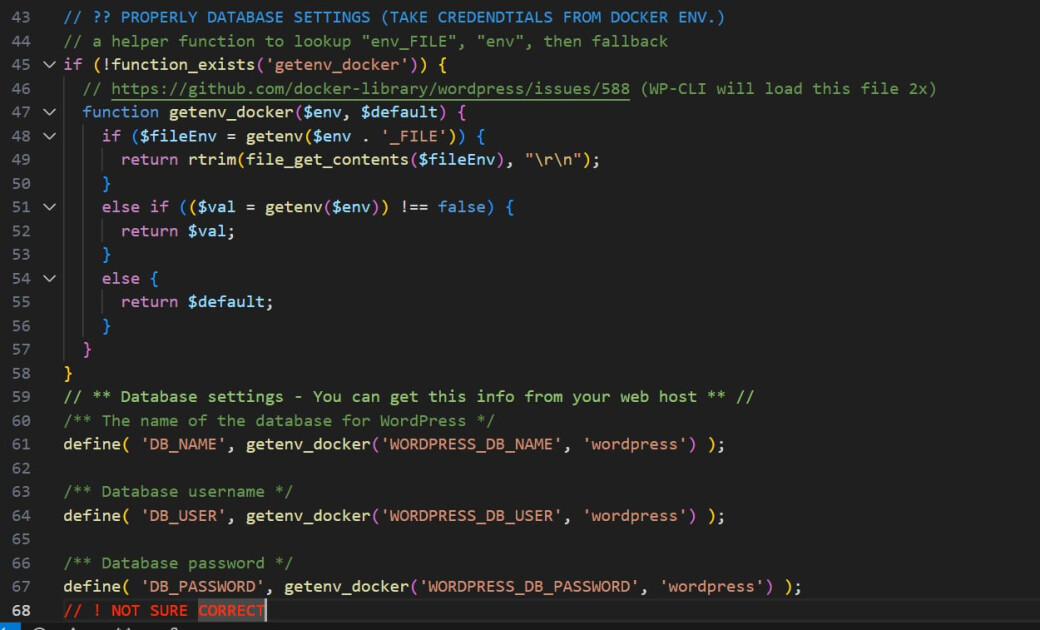
I check the wp-config and change default settings:
to this:
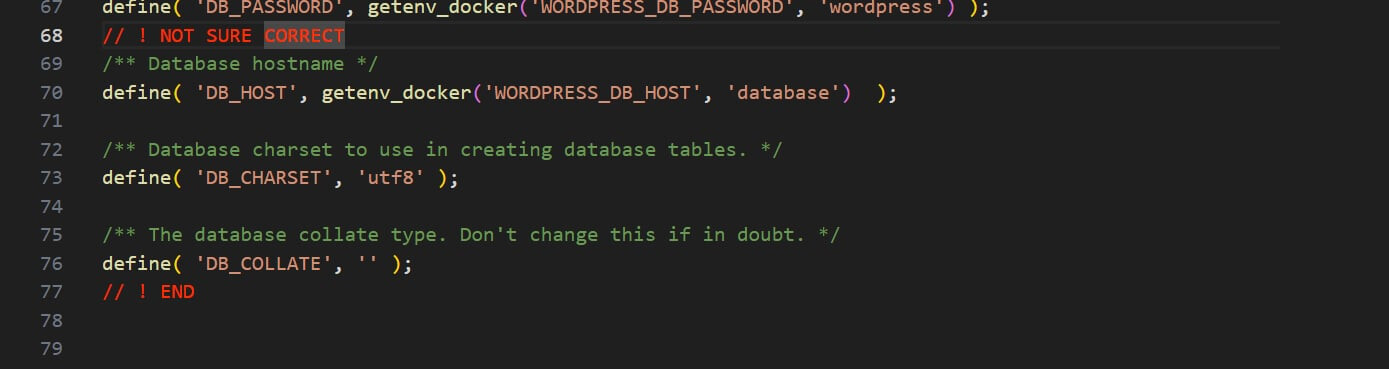
This is my wp-cofig.php
<?php
/**
 * The base configuration for WordPress
 *
 * The wp-config.php creation script uses this file during the installation.
 * You don't have to use the web site, you can copy this file to "wp-config.php"
 * and fill in the values.
 *
 * This file contains the following configurations:
 *
 * * Database settings
 * * Secret keys
 * * Database table prefix
 * * Localized language
 * * ABSPATH
 *
 * @link https://wordpress.org/support/article/editing-wp-config-php/
 *
 * @package WordPress
 */

// ** Database settings - You can get this info from your web host ** //
/** The name of the database for WordPress */
define( 'DB_NAME', 'local' );

/** Database username */
define( 'DB_USER', 'root' );

/** Database password */
define( 'DB_PASSWORD', 'root' );

/** Database hostname */
define( 'DB_HOST', 'localhost' );

/** Database charset to use in creating database tables. */
define( 'DB_CHARSET', 'utf8' );

/** The database collate type. Don't change this if in doubt. */
define( 'DB_COLLATE', '' );

/**#@+
 * Authentication unique keys and salts.
 *
 * Change these to different unique phrases! You can generate these using
 * the {@link https://api.wordpress.org/secret-key/1.1/salt/ WordPress.org secret-key service}.
 *
 * You can change these at any point in time to invalidate all existing cookies.
 * This will force all users to have to log in again.
 *
 * @since 2.6.0
 */
define( 'AUTH_KEY',
define( 'SECURE_AUTH_KEY',
define( 'LOGGED_IN_KEY',
define( 'NONCE_KEY',
define( 'AUTH_SALT',     ;
define( 'SECURE_AUTH_SALT',
define( 'LOGGED_IN_SALT',
define( 'NONCE_SALT',        '
define( 'WP_CACHE_KEY_SALT', '


/**#@-*/

/**
 * WordPress database table prefix.
 *
 * You can have multiple installations in one database if you give each
 * a unique prefix. Only numbers, letters, and underscores please!
 */
$table_prefix = 'wp_';


/* Add any custom values between this line and the "stop editing" line. */


/**
 * For developers: WordPress debugging mode.
 *
 * Change this to true to enable the display of notices during development.
 * It is strongly recommended that plugin and theme developers use WP_DEBUG
 * in their development environments.
 *
 * For information on other constants that can be used for debugging,
 * visit the documentation.
 *
 * @link https://wordpress.org/support/article/debugging-in-wordpress/
 */
if ( ! defined( 'WP_DEBUG' ) ) {
	define( 'WP_DEBUG', false );
}

define( 'WP_ENVIRONMENT_TYPE', 'local' );
/* That's all, stop editing! Happy publishing. */

/** Absolute path to the WordPress directory. */
if ( ! defined( 'ABSPATH' ) ) {
	define( 'ABSPATH', __DIR__ . '/' );
}

/** Sets up WordPress vars and included files. */
require_once ABSPATH . 'wp-settings.php';
and on http://127.0.0.1:8080/wp-login.php I have this:
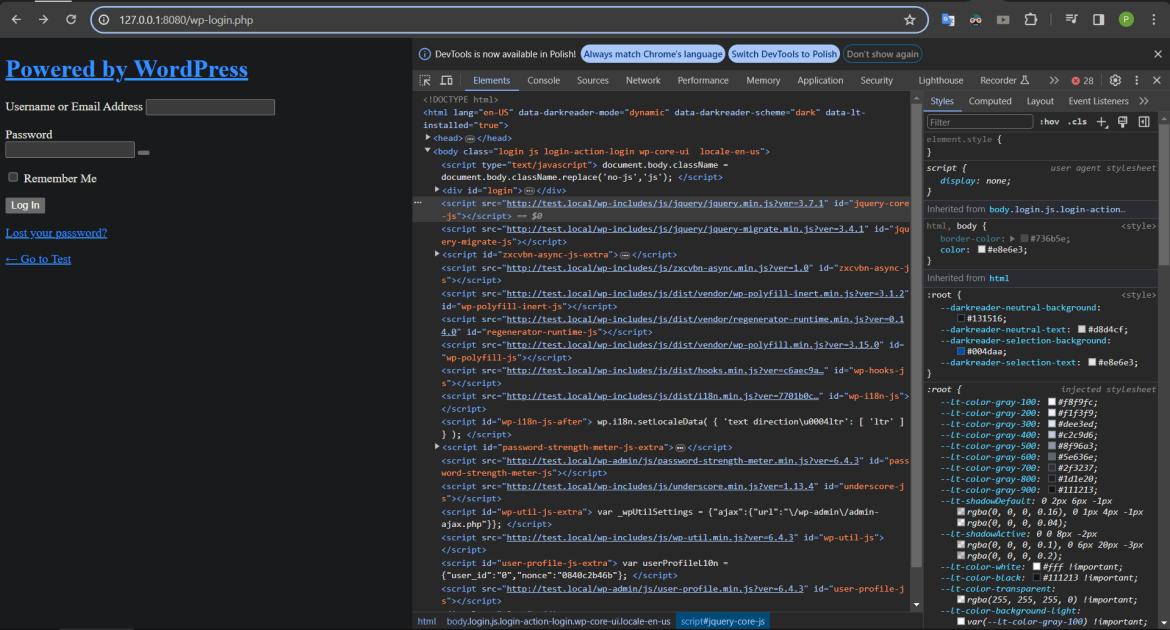
I check this element, and it has wrong src attribute value
they started test.local
but will be
http://127.0.0.1:8080/
I check and files are on the different URL
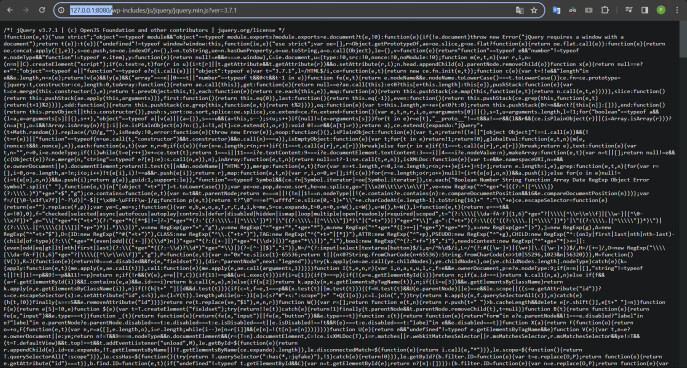
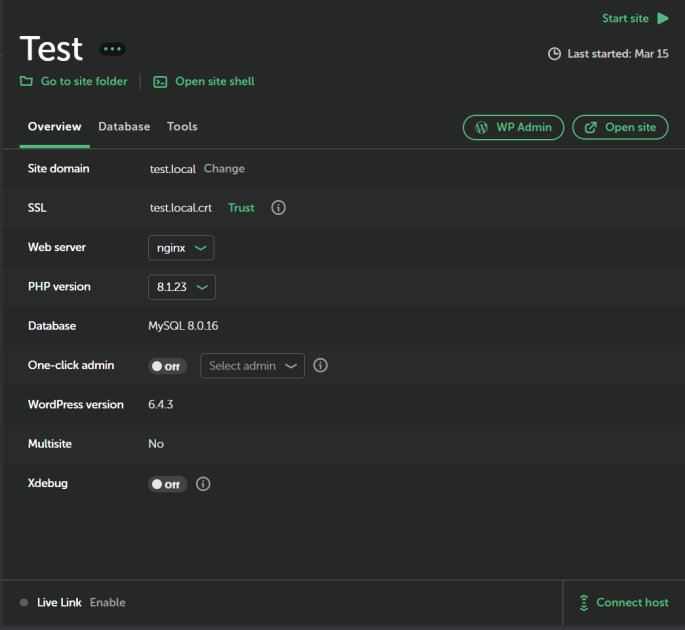
this is probably setup from local

but now I don’t know how set this to 127.0.0.1:8080/
I try figure it out in wp-login.php
but it is not explicit declare
and I don’t know PHP so much to understand this and this file is too long to ask AI
Can someone explain my how to fix this issue? Where set this URL?
AI says that URL was setting in WP_HOME and WP_SITEURL variables but it itsn’t set in my wp-config.php and when I add them this not solve the problem.
define('WP_HOME', 'http://localhost:8080');
define('WP_SITEURL', 'http://localhost:8080');
System Details
-
Local Version:
Version 8.2.1+6583 -
Operating System (OS) and OS version:
Windows10