LocalWP > Export > LocalWP > Import > Data Loss

I exported my LocalWP website and then imported right back into LocalWP as a backup site. But, for some recent changes in the website, they are missing in the imported site.

On 4/19, I uploaded images that were placed on my home page, cloned some pages, setup my map API keys and all was working fine. Site was idle for almost a week because LocalWP would not start because of duplicate port number in the sites.json file which is fixed now. Once fixed, I then “exported” on 4/27. Changes I made weeks before 4/19 were all there when I imported the site zip right back into LocalWP. But, days of changes before the export, are just gone in the imported version. Do you have any idea why my site that I exported, does not match the imported site? I did not get any errors or warnings during the process. Site seems to running well except for just the missing changes and images from just recently. Thanks!


Versions below:

Windows 11

Are the images missing in the media library/uploads @Azdolfan? Or are they just missing when you visit the page? It might be that they are still there but the new site needs a Search and Replace to fix up mixed content. When you visit the page you can check the Dev Console and see if it shows any mixed content type errors.

I did another “export” from my original LocalWP site tonight. It did the same thing as before. It keeps ignoring recent changes and exports everything from end of day April 19th and nothing new after that date and time. Some of the things missing in both exports:

  1. My custom Header made with Elementskit is gone, and the theme’s header is back. Over a week ago, I had deactivated some template plugins I was looking through for website ideas, and when done, deactivated them. I accidently deactivated Elementskit too. I had reactivated Elementskit again like the next day when I noticed my custom header gone. So, every time I do an export and import to LocalWP now, that plugin is deactivated and my header is not there.

  2. I uploaded new images for my Home page. The latest export still did not do any new images. The Missing Images are dated April 19th-April 28th. Now, not only are they not in the media library, but my Home page does not have a “missing image” tag, it has the older images.

Parrotsforsale on April 19th

This is the site that I imported it to. The teal bird was my placeholder images. So, I’m pointing out that the image containers don’t have broken image links because it can’t find the newer image in the media library. It’s just using the birds that were there before I uploaded new images.

Parrotsforsale > Media Library > this row has images dated from April 19th-April 28th

LocalWP > Import > Parrotsforsale-staging > Media Library > Missing Images dated April 19th-April 28th.

This is the first one that it starts missing dated April 19th:

This is the last one that it exports properly dated April 16th:

)

  1. I cloned some pages using “Yoast Duplicate Post” around April 19th as well, and those duplicate pages no longer exist.

  2. Maps API was configured setup on April 17th → early April 18th.

A working Map on Parrotsforsale:

Maps not working on imported site:

Working on Original:

Broken on Staging

  1. I was working on WP > Pages > on 4/19 as you see in this image (I searched on the word main to limit the results and you can see some changes on 4/19 made it and some did not).

  1. I want to mention something that happened on April 19th, which seems to be the cutoff date for new data. I work with AI as I work on my website. I have been confirming my dates with it. AI said, I ran my LocalWP UPDATE to Version 10.0.0+6907 on April 19th at 6pm. After the update, I continued working on the site that night without problems. I shutdown my computer over night and the LocalWP would not start the next day. The problem was that I had multiple ports using the same number in the sites.json file. There is a resolved ticket on here for that issue I’ll link to it below. So, not sure if that is related, but it’s a fact that I did my LocalWP update that date and it is the date and time that new data is no longer getting exported from my original site.

Link to my other support ticket on LocalWP not starting…

Uh Oh - Unable to Start Site - Can’t connect to mySql server at ::1’ failed - Support - Local Community

Let me know if there is anything else I can check or provide for you. Thanks a bunch for any help on this matter. :slight_smile:

Elementskit might be the key piece here @Azdolfan. We’ve had users try this in the past, but unfortunately, it only seems to work correctly in an online, hosted environment and not locally. So I don’t believe this is related to your other issue but just an organic limitation.

Hi again — I ran two additional controlled tests to isolate the issue.
Here are the results:

Test 1 — Site A → Site B (Elementskit deactivated BEFORE export)

Steps:

  • Deactivated Elementskit first on Site A

  • Exported Site A → imported into Site B

  • Site B still missing all development after April 19th

  • Missing items include:

    • Media Library uploads (4/19–4/28)

    • Cloned pages

    • Maps API key

    • Elementor edits

    • Listing Type images

    • Header (expected, since Elementskit was off)

  • Conclusion: This is NOT caused by Elementskit. The export is pulling from an outdated database snapshot.

Test 2 — Site B internal test (critical)

Goal: Determine whether LocalWP can save any new development at all.

Steps:

  • On Site B, I created brand‑new development today:

    • Added new images

    • Added new Home page sections

    • Added a new Listing Type

    • Added a new Page

  • Exported Site B → imported into Site C

  • Result: Site C looks exactly like Site B before the new changes

  • None of the new development exported

  • Conclusion: LocalWP is not exporting ANY new development, even on a fresh site.

Final Diagnosis (based on both tests)

LocalWP is exporting from a stale database snapshot frozen on April 19th, regardless of:

  • which site is exported

  • whether Elementskit is active or inactive

  • whether the site is old or newly created

  • what plugins are installed

  • what changes are made

This is a LocalWP environment issue, not a plugin issue.

Important Timeline Correlation

  • I updated LocalWP on April 19th at 6pm

  • The next morning, LocalWP would not start due to MySQL port conflicts

  • After fixing the site.json issue, the site ran again

  • All development after April 19th is missing from every export

  • Even brand‑new development created today cannot be exported

What I need help with

It appears LocalWP is reading from or exporting from the wrong SQL directory, or the active database is no longer being written to disk.

Can you help me investigate why LocalWP is exporting a frozen database snapshot instead of the current one? I can no longer use LocalWP for development now, because it no longer exports any new development.

Thank you — I appreciate any help you can provide.

Hi @Azdolfan

As another test if you creat a new, blank site, do work there and export it does it work as expected? In other words, is the problem isolated to these current/previous installs or does it matter what install you’re working with even new ones?

Could you also share a copy of your full local log here? Retrieving Local’s Log File

Hello Nick B -

I completed the full diagnostic you requested using a brand‑new LocalWP site (testblanksite) that was not imported from anywhere and just created by LocalWP. My results are as follows:

1) Added 5 images to Media Library

Result: :check_mark: Images successfully appeared in the imported site.

2) Created a new Page

While creating the page, something unexpected happened:

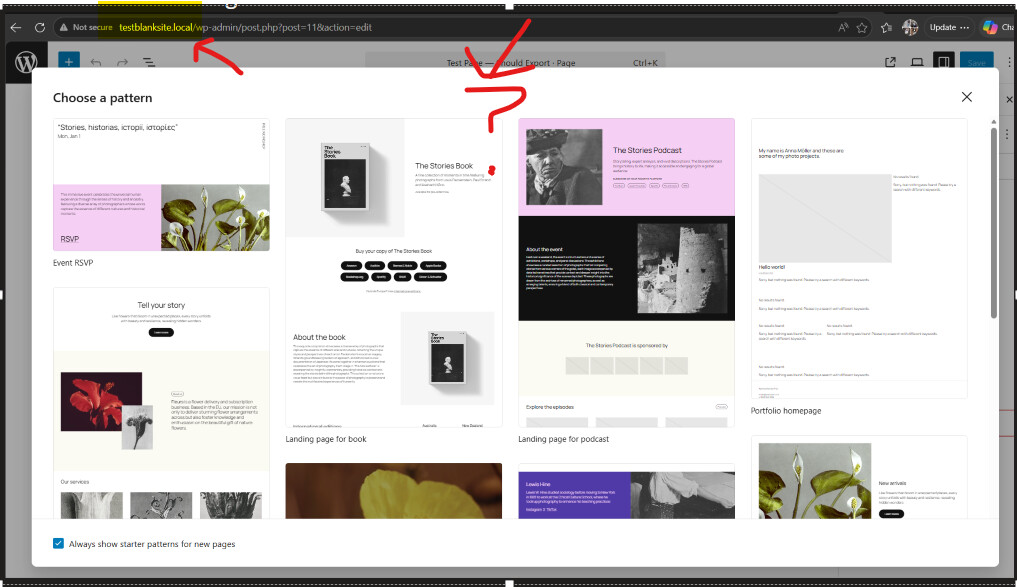
  • When I clicked Pages → Add New, a Starter Templates popup appeared — the same template plugin that exists on my main site (parrotsforsale.local).

  • This blank test site has zero plugins installed, which I confirmed on the Plugins screen.

I am attaching two screenshots showing:

  • the Starter Templates popup appearing

  • the Plugins screen showing no plugins installed

Result: :check_mark: Test Page appeared in the imported site.

Starter Template Popup:

No Plugins, yet Starter Templates popped up when adding a Page.

3) Created a new Post

Result: :check_mark: Test Post appeared in the imported site.

4) Changed Homepage settings

Settings → Reading:

  • Homepage = Test Page

  • Posts Page = Sample Page

Result: :check_mark: Homepage settings carried over correctly.

5) Installed a small plugin (“Disable Comments”)

Result: :check_mark: Plugin was still installed and active after import.

6) Added a Navigation block to the Test Page

Result: :check_mark: Navigation block and its links were preserved.

Summary of Findings

All six test items did carry over correctly in the export/import of a brand‑new blank site.

However, the cross‑site contamination is extremely concerning:

A blank site with zero plugins showed Starter Templates from another site.

This should not happen and suggests that something in the LocalWP environment is not isolating sites correctly.

Additionally, when I tried adding a page on the imported blank site (testblanksite-staging), the Starter Templates popup appeared again, even though the only plugin installed was “Disable Comments.”

Concerns with the Blank Site

Even though the blank site exported correctly, the fact that it displayed templates from another site indicates a deeper issue affecting site isolation. This may be related to the original symptoms:

  • All development after April 19 missing from exports

  • Imported sites stuck on older database snapshots

  • Taxonomies and Listing Types becoming corrupted

  • Images and settings after 4/19 not appearing in exports

  • Unexpected UI elements appearing on unrelated sites

At this point, I cannot safely use LocalWP for development until this is resolved.

I also need to be able to use my original site that seems corrupted. There has been many months of development there.

I’m also attaching logs from:

  • Site A (parrotsforsale.local) - Original Site, export only.

  • Site B (parrotsforsale-staging.local) - Imported from Site A.

  • Testblanksite (the new blank site) - including because of the Starter Template issue.

These three logs show the behavior across all environments.

UPDATE: I see that the log files are not per each site. So I’m just zipping them all and attaching for you.

Thanks, Nick B for looking into this for me :slight_smile:

local-lightning-logs-zipped-parrotsforsale-4-30-26.zip (587.6 KB)

As far as the Patterns showing up in new sites, I believe this is by design aka a WordPress feature (not a Localwp one), as the Block Editor Stores Patterns & Templates in the Browser.

The Gutenberg block editor saves certain data to your browser’s localStorage and IndexedDB, not just the WordPress database. This includes:

  • Recently used block patterns
  • Template part selections
  • Editor preferences and panel states
  • In some cases, draft content

Because this is stored in the browser itself, it persists across completely different WordPress installations as long as you’re using the same browser and the sites are served from the same or similar local URLs (like localhost).

Regarding the older sites, it is possible some data has been lost due to corruption or other issues you were troubleshooting previously. Did you create/store any other backups of these using our Cloud Backups Addon for example? Local Cloud Backups - Local

Moving forward, I think the best path here would be to do a complete wipe and reinstall. The steps would look something like this:

  • Ensure you have all of your work backed up, exported and saved. You can export your current sites as zip files, or save them to your preferred Cloud Storage Provider.

  • Fully uninstall Local from your computer following the steps for your OS here: Uninstall Local - Local

  • Install the latest version of Local on this link: Releases - Local

  • Once installed, please restart the computer.

  • When the computer is restarted and turned on, close any applications that automatically run in the background (AntiVirus, Firewall, and other Developer applications included).

  • With all of that done you can reimport sites and try to resume normal workflows and see if issues persist. Keep in mind the new imports might still be missing any data that was lost unless you have something like a Time Machine backup you’re able to retrieve.

Moving forward, I’d highly recommend consistently saving work with our native Cloud Backups that is now baked right into Local making it faster and easier to save and restore from backups.

Update: Sorry for the delay in updating this support ticket. I finally found a “work-around” to save my website so I can now export and import using LocalWP and all my new work is passed on from import site to new import site.

The Problem My site (Site A) would no longer export changes made after April 19th. If I imported that site into a new container (Site B) and made new changes in Site B, those changes would show as saved while I was working. But if I then exported Site B to a Site C, those new changes were also lost. My website was basically no longer usable because the export utility was trapped in a “time-loop” referencing stale data.

I found a way to recover it, and I can now make changes and successfully export them via the LocalWP export feature. Below are the steps I took to recover from this database/export failure.

The Resolution I restored the functionality of the LocalWP Export tool by performing a clean-slate manual migration into a brand-new site environment. The steps it took to do that is below:

Manual Database Extraction (via AdminNeo):

  • Instead of using the LocalWP “Export” feature (which was pulling stale data), I used AdminNeo to pull a fresh, manual SQL dump of the database. This ensured I captured the actual “live” state of the site.

Creation of a Fresh WordPress Install:

  • I created a completely new, blank site within LocalWP. I did not use the “Clone” or “Import” features, as those seemed to carry over the export bug. Creating a fresh install ensured a clean file structure and a new, functional database container.

Manual File System Sync:

  • I manually copied the wp-content folder from the old, broken site to the new, blank site. This brought over my themes, plugins, and media without touching the potentially corrupted core LocalWP configuration files.

System-Level Configuration (wp-config.php):

  • I kept the wp-config.php file that was generated by the fresh install and only edited it to match my specific table prefixes or unique requirements. I did not overwrite it with the old site’s config file, which ensured the new site stayed “clean.”

URL & Path Mapping (Search & Replace):

  • Since the new site had a different local URL, I used the Better Search Replace plugin to update the database. I performed a search for the old site URL and replaced it with the new site URL across all tables. It worked perfectly with no missed URLs or broken data.

Outcome:

  • By moving the data into a brand-new WordPress install manually, I “reset” the export logic. Site B is now functioning normally, and I can once again use the standard LocalWP Export/Import features to move my work. I did still lose some data after April 19th, but at least new data is now being saved and exported correctly.

Thanks for your help Nick-B! And, btw, I was not using the LocalWP’s Cloud Backup, but would love to use it. However, that had failures too. I’ll look into it more in the future and see if it starts working. Thanks!

Thank you for the update here @Azdolfan - glad to hear you were able to find a workaround.

We haven’t been able to replicate any problems or find a related bug. So I’m unsure if there was some interruption due to your original issue, or if it still boiled down to a conflict with Elementskit. It sounded like from your testing that new sites worked fine, so it may be some specific configuration conflict with the other site(s) you had already been working with. Either way glad you’ve found a workflow now that gets you going.